I’ve downloaded more productivity apps than I’ve finished projects. That’s a joke. Mostly. Okay, it’s a confession with good lighting.
Why This List Is Different
After years of trying, here’s what I learned: an ADHD brain doesn’t need more apps. It needs fewer ways to get distracted.
A lot of “best ADHD apps” lists recommend tools that live on your phone, ring every 25 minutes and ask you to build an entire system before they help. That’s not a productivity tool. That’s a side quest.
So this list works differently. These are tools I’ve actually used, rated on what they do to an ADHD brain: how likely they are to pull you off track, how much setup they need, and whether they break your focus. Each one comes with what it’s good for and what it isn’t. You’ll also find the tools that didn’t work for me — because pretending everything is amazing is the app store’s job, not mine.
Quick disclosure: I sell a Notion planner. It’s on this list, I’ll tell you when I’m talking about it, and I’ll also tell you where a free tool does the job just fine.
Start Here: Pick by Your Struggle
You don’t have to read all six. (I know. I wouldn’t either.) Find your problem, jump to its tool, and come back for the rest if you feel like it.
How I Rated These Tools
Most lists judge apps by their features. Features don’t matter much if you abandon the app by Thursday. I rated each tool on the questions that decide whether an ADHD adult actually keeps using it:
- Distraction riskDoes opening it lead you somewhere else? Anything on your phone starts with a handicap.
- Setup effortHow much do you have to build before it helps you?
- Interrupts focusDoes it break your flow at the exact moment you finally found one?
- Keeps me interestedIf a tool is boring, I won’t open it. Harsh, but true.
- Holds extra infoCan it keep the context, notes and links right next to a task?
- Shows up on its ownDoes it remind you, or do you have to remember to check it? (Remembering things is, famously, the whole problem.)
- Easy to restartAfter a missed week, can you pick it back up without a rebuild or a guilt spiral?
These ratings come from my own use, not a lab. Your brain is allowed to vote differently.
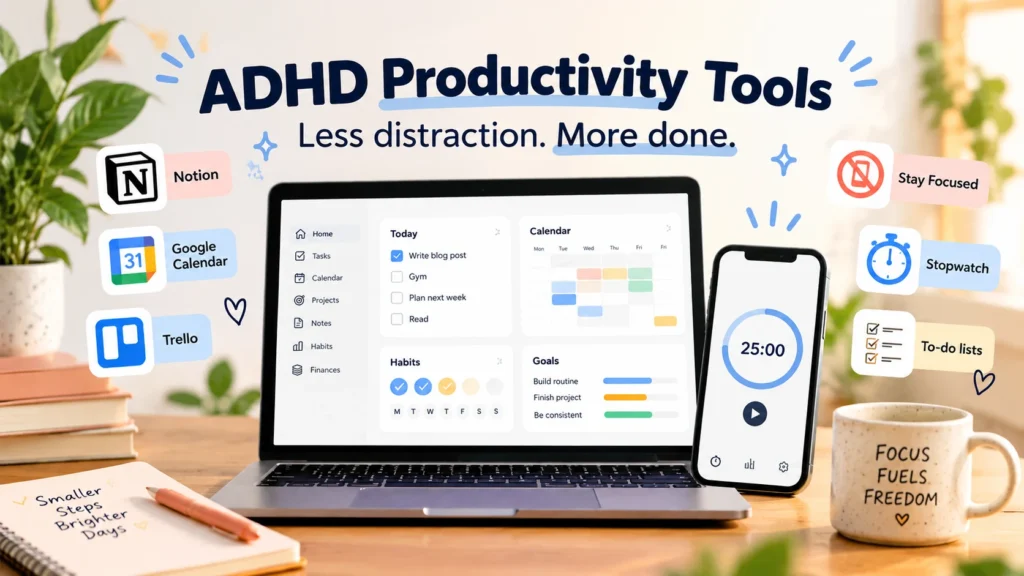
ADHD Productivity Tools Compared
Notion and Stay Focused score best overall for me. The paper notebook wins on distraction — and loses on everything that needs memory.
| Tool | Distraction risk | Setup effort | Interrupts focus | Keeps me interested | Holds extra info | Shows up on its own | Easy to restart |
|---|---|---|---|---|---|---|---|
| NotionHolding everything in one place | Medium | High (low with a template) | No | High | High | Medium | Medium |
| Google CalendarAppointments and time-based plans | Low | Low | At reminders | Medium | Low | High | High |
| Stay FocusedStopping phone distractions | Lowers it | Low | At limits | Background | Low | Yes, blocks | High |
| TrelloVisual project boards | Medium | High | No | High | High | Low | Low |
| Count-up stopwatchGetting started | Low | None | No | Background | Low | No | High |
| To-do list appsQuick lists with reminders | Medium (it’s on your phone) | Low | No | Low | Low | Medium | High |
| Paper notebookToday’s list, zero distraction | None | None | No | Medium | Low | No | High |
📝 Tools That Plan
These hold your tasks, time and information, so your brain doesn’t have to.
1. Notion: Best for Holding Everything in One Place
A digital workspace where you build pages and databases for tasks, notes and projects — and every task can carry its own context.
Good for
- Complex tasks and several projects at once, for work or studies, with all the context stored right next to each task
- Seeing today’s tasks without having to remember them
- Growing with you, from a simple list to a full system
Not good for
- Anyone who needs something working in five minutes. The setup is the hardest of anything on this list.
- Tinkerers who might spend more time decorating the system than using it. Asking for a friend. The friend is me.
My verdict
Notion is my number one, and it has been for years. I work on several projects, and a lot of my tasks are complex, so each one needs its own context: the background, the links, the notes, what I decided last time. Notion keeps all of that with the task, whether it’s for work or for studies, and puts it in front of me on the right day. Nothing gets lost.
Honestly, I don’t remember much of my own life, and I think my ADHD has a lot to do with that. Notion remembers for me, which is basically a superpower with a login screen.
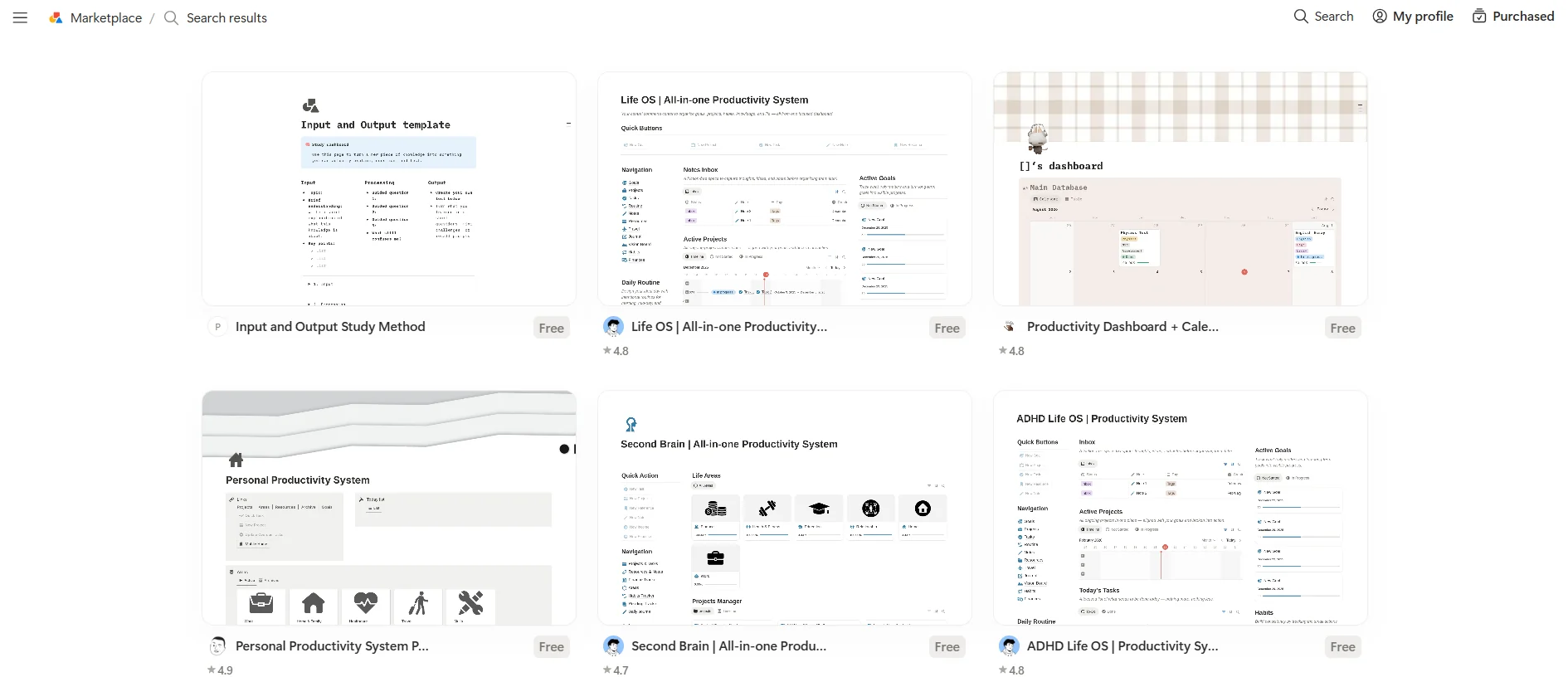
The catch is setup. A blank Notion page has the same energy as an empty apartment: so much potential, and you’ll stand in the middle of it for three weeks wondering where the couch goes. That’s why templates exist. Notion’s own template gallery lists more than 30,000 of them, and a lot are free, so you can browse what’s out there before you pay for anything.
It’s also why I built the ADHD Bright Planner. It’s a Notion template, not a separate app: a ready-made system with task capture, a Focus Zone for timeboxing, a habit builder and a project breakdown tool, so you skip the building and start using it. If you’d rather build your own, the free templates in the gallery are a great place to start too. Notion itself is the magic either way.
Cost: Notion starts free, with paid plans for extra features. There are hundreds of free templates, and paid specialist templates are available too.
2. Google Calendar: Best for Appointments and Time-Based Plans
A free calendar that shows your day as blocks of time and sends you reminders.
Good for
- Appointments, deadlines and anything that repeats
- Seeing how much time your day actually has, instead of how much time you hope it has
- Showing up on its own with reminders, so you don’t have to remember to check it
Not good for
- Holding detailed notes or information about a task
- Long to-do lists. Put 30 tasks in your calendar and it turns into a very colorful wall of guilt.
My verdict
The most underrated tool on this list. It’s free, it’s probably already on your phone, and it does the one thing most apps can’t: it comes to you. I don’t have to remember to check my calendar. My calendar remembers to check on me. Slightly needy. Extremely useful.
Cost: free with a Google account.
3. Trello: Best for Visual Thinkers
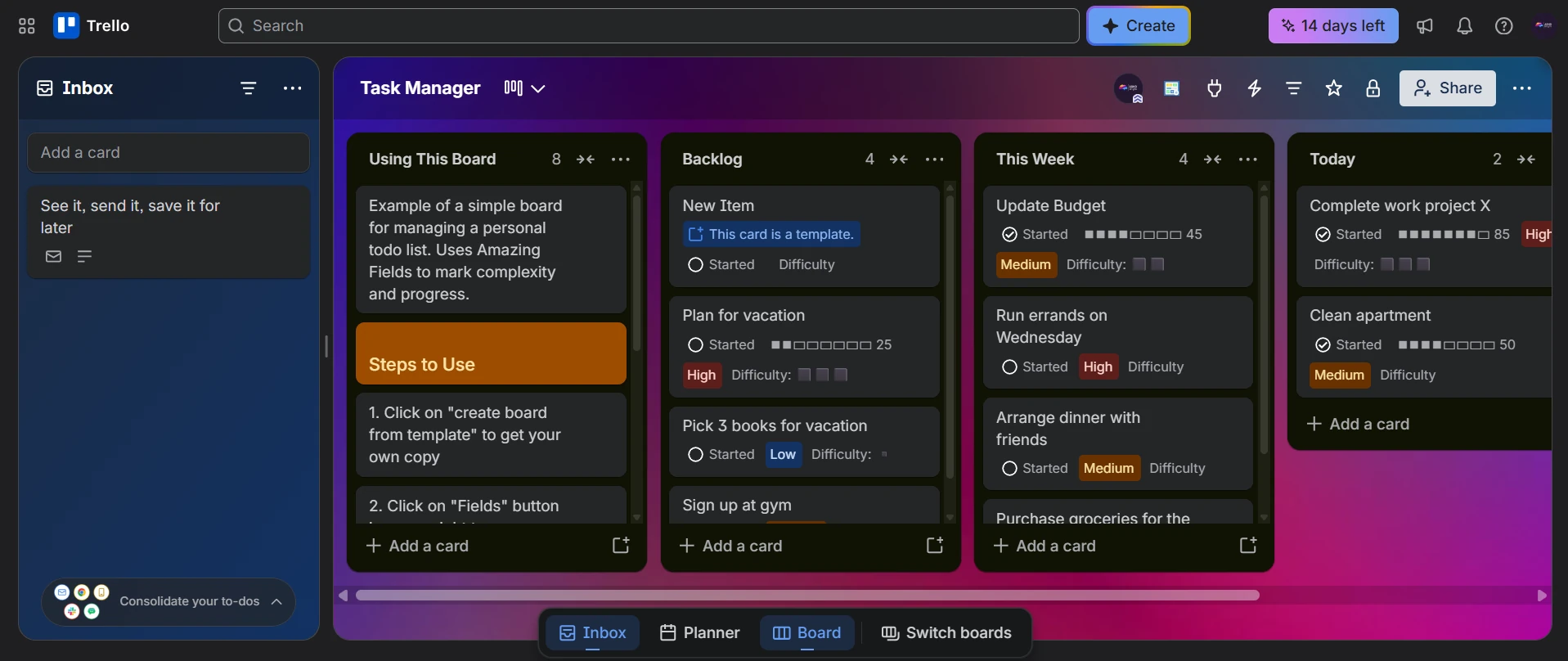
Boards with columns and cards that you drag from “to do” to “done”.
Good for
- Seeing a whole project at a glance
- Storing lots of information on each card and keeping everything organized
- People who like physically moving a task to done (deeply satisfying, no notes)
Not good for
- Anyone who freezes when they have to design their own system
- Daily planning, when all you need is today’s tasks
My verdict
I loved Trello. You can save so much information there and keep everything tidy. What I didn’t love was building the pipeline: deciding the columns, the labels, the flow. For me that became its own overwhelming project.
If you enjoy setting up systems, Trello is wonderful. If setting up systems is how you procrastinate, consider yourself lovingly warned.
Cost: free plan available; paid plans add more features.
🎯 Tools That Protect Your Focus
Productivity isn’t only having a plan. It’s also not getting pulled away from it. And for most of us, the thing doing the pulling lives in our pocket.
4. Stay Focused: Best for Stopping Phone Distractions
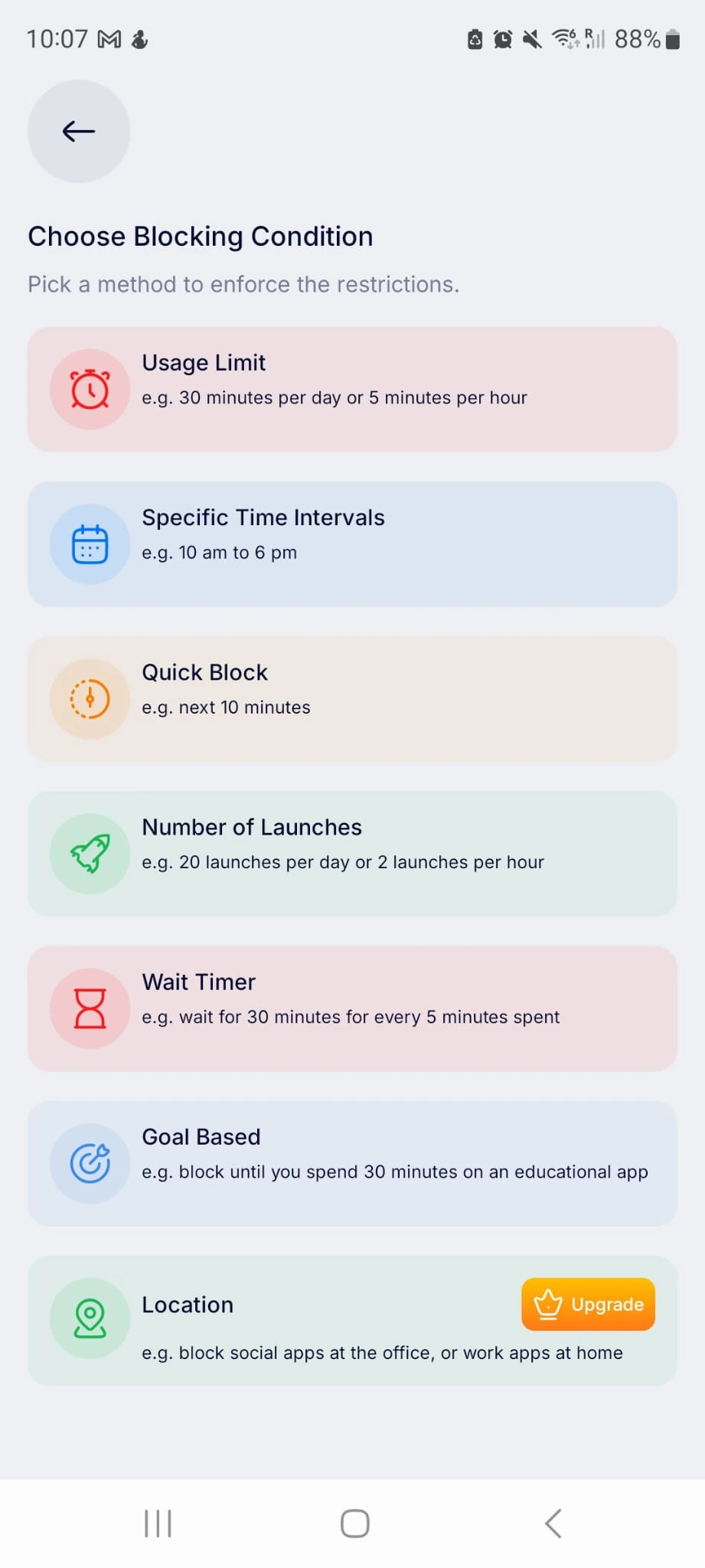
An app blocker for your phone. You choose which apps to limit, set a schedule or a daily time limit, and it blocks them when time’s up. It works on Android and iPhone.
Good for
- Social media that quietly eats hours of your day
- Blocking distracting apps during work hours
- Anyone who has figured out that willpower is not a strategy
Not good for
- Planning. It doesn’t plan, it protects. Pair it with Notion or a calendar.
- People who’ll happily spend 20 minutes hunting for a loophole (see my verdict)
My verdict
This is the app I’d save from a burning building. I’ve used Stay Focused for six years, still on the free version, on Android, and it cut my social media down to a few minutes a day.
When I hit my limit, the app is blocked for good. You can even set a message that pops up when it happens. Mine is basically past me telling present me to put the phone down. Rude. Correct.
Can you get around it? Technically, yes: you can go into the settings and change things. But it’s just annoying enough that I give up, put the phone away and do what I was supposed to do. That’s the whole trick: make the distraction more effort than the work.
Cost: free, with optional in-app purchases.
5. A Count-Up Stopwatch: Best for Getting Started
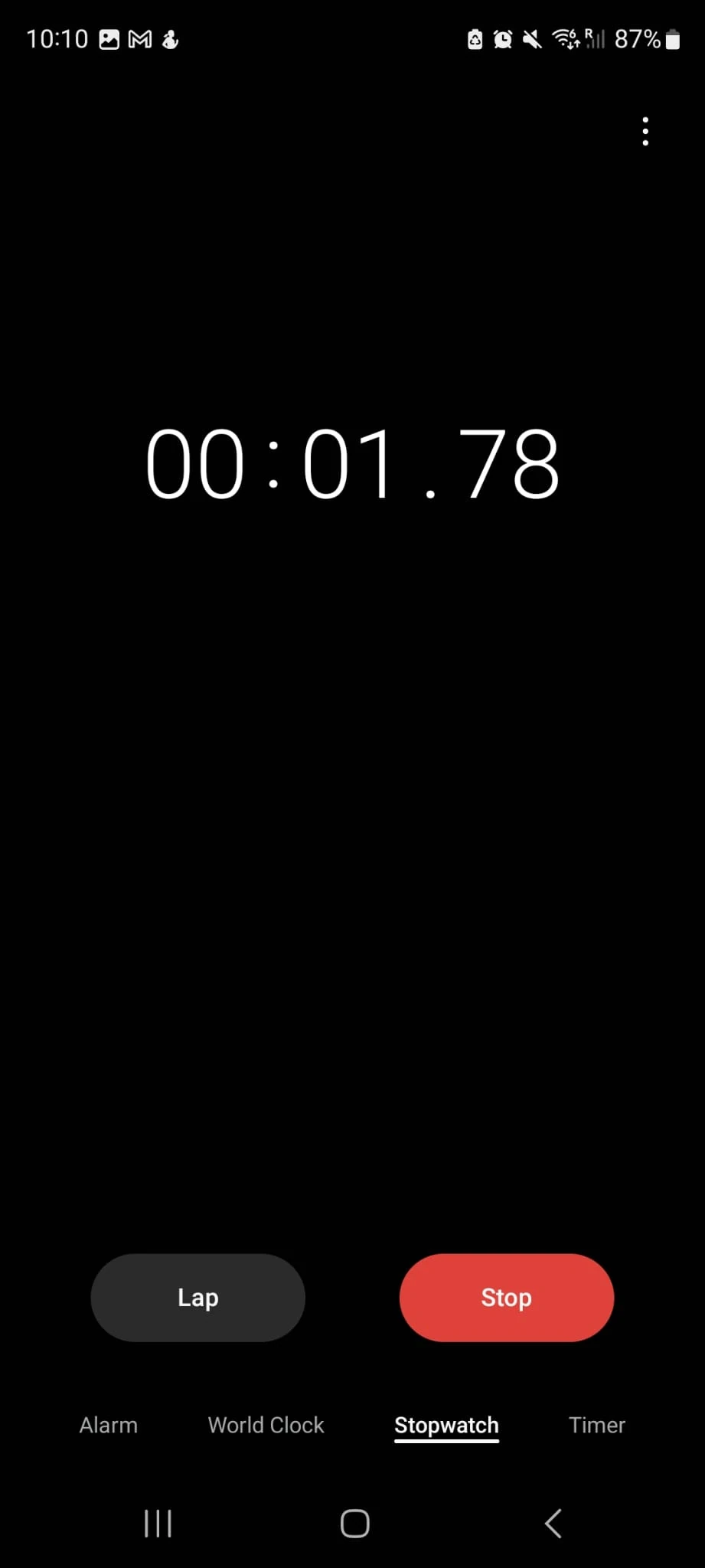
The stopwatch that’s already on your phone. Start it, flip the phone face down, and work until you naturally stop.
How I use it: I tell myself I’ll work for two minutes. Just two. I start the stopwatch, turn my phone upside down and only look at it when I’m done. Most of the time “two minutes” turns into much longer, because starting was the hard part.
Getting stuck at the start? Read ADHD Task Initiation: How to Start When You Feel Stuck.
Good for
- Getting started on tasks you’ve been avoiding
- People who hyperfocus and hate being interrupted mid-flow
- Zero setup and zero cost
Not good for
- Times you need a hard stop, like leaving for an appointment. Set a calendar reminder for that.
- Anyone who flips the phone back over and “just checks one thing”. Pair it with Stay Focused.
My verdict
It’s not an app, and that’s exactly why it works. Nothing rings. Nothing tells you to take a break right when you finally got going. It just quietly counts how long you’ve been winning. If you want a more structured version, try timeboxing.
Cost: free. It’s already on your phone. You’re welcome.
6. Simple To-Do Lists: Apps vs Paper
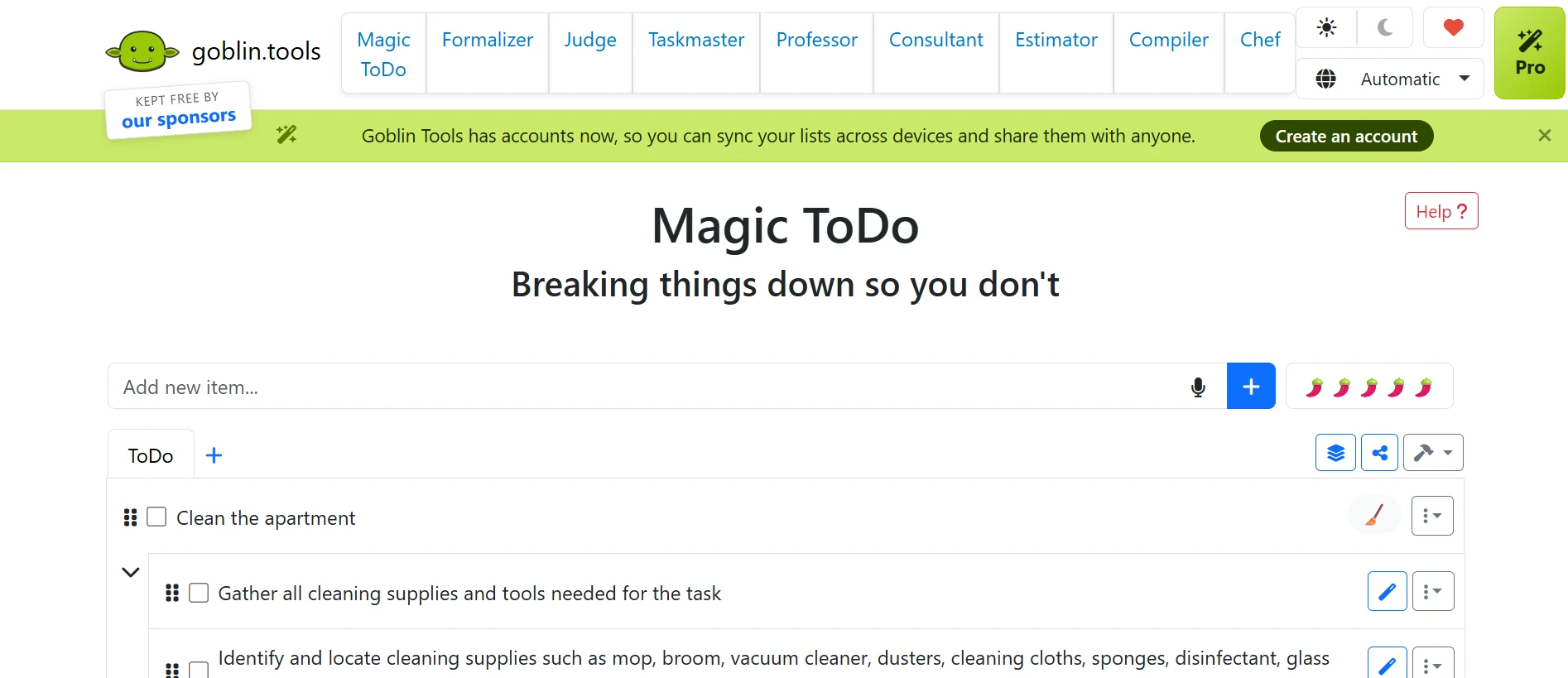
Apps like Todoist and Tiimo hold a list of tasks with due dates and reminders. Goblin Tools’ Magic ToDo breaks a big task into smaller steps for you. And then there’s the original: a notebook and a pen.
Good for
- Getting tasks out of your head fast
- Goblin Tools in an emergency, when a task feels too big to even start
Not good for
- Tasks that need context, like notes, contacts or project details. That’s where Notion or Trello win.
The ADHD catch: list apps live on your phone. You open one to check a single task, see a notification, and twenty minutes later you’re watching a stranger restore a rusty knife. Your brain didn’t even file a report.
My verdict
I tried Todoist and Tiimo and found them very similar: solid to-do lists, and not much more. Goblin Tools is clever when you need to break something down quickly, but its plain design didn’t keep me coming back — and if a tool doesn’t hold my interest, I won’t use it.
If all you need is today’s list, a paper notebook does the same job with zero distraction risk. No notifications. No updates. No “what’s new in version 7.2”. Just you and a pen that will eventually go missing.
Cost: Todoist and Tiimo have free versions with paid upgrades. Goblin Tools is free in your browser. Paper is extremely affordable.
Honorable Mention: Body Doubling
What it is: working next to another person, in person or on a video call, while you each do your own task. Services like Focusmate pair you with someone online for exactly this.
Plenty of ADHD adults swear by body doubling, which is why it gets a mention here. For me, it mostly doesn’t work. If someone asks me to do something for them, I’ll do it. But if we meet up to each work on our own projects, I get curious about theirs. Then I want to help. Then we’re chatting. Then it’s dinner time and my project is exactly where I left it, looking at me.
So: know yourself. If you know you’ll talk the life out of whoever sits next to you, it’s probably not worth it. If quiet company helps you settle, give it a try. I haven’t used Focusmate myself, so I won’t rate it. I cover how body doubling works in ADHD Productivity: 10 Strategies to Get Things Done.
What Didn’t Work for Me
Every list tells you what’s great. Here’s what I tried and quietly uninstalled.
Asana
A solid project tool, but it felt too basic for me. The design didn’t engage me at all. If I just need a list, I might as well write it in a notebook — and then at least I get to use a nice pen.
Pomodoro timers
Work 25 minutes, break for 5. For me: I finally get into focus, and the timer rings. The 5-minute break becomes 40, and starting again is just as hard as the first time. If you hyperfocus, try the count-up stopwatch instead.
My Setup (and How to Build Yours)
For the past three years, my whole setup has been three tools:
That’s it. It holds everything I need, and I genuinely don’t want anything else.
You don’t need my setup. You need yours. Here’s how to build it without tool-hopping:
- Find your biggest struggle in the “Start here” list above.
- Pick one tool for it. One. Not six. (Yes, I’m aware I just handed you six. Do as I say, not as I list.)
- Use it for two weeks before adding anything else.
- If you stop using it, don’t start over from zero. Ask what got in the way: the setup, the distraction or the boredom. Then swap the tool, not your self-worth.
- Add a second tool only once the first one feels automatic.
If Notion’s setup is the thing stopping you, the ADHD Bright Planner is the shortcut: the system is already built, so you can start planning today.
See the ADHD Bright PlannerStill comparing options? See ADHD planners built for adults or the best digital planner for ADHD adults.
FAQs
What are the best ADHD productivity tools?
The best tool is the one that fixes your biggest struggle without adding distraction. For holding everything in one place, try Notion. For appointments, Google Calendar. For phone distraction, an app blocker like Stay Focused. For getting started, a count-up stopwatch.
What should I look for in productivity tools for ADHD?
Look for low distraction risk, setup you can actually finish, and no interruptions to your focus. It should also hold your interest and be easy to restart after a missed week.
Are digital or paper tools better for ADHD?
Both have a job. Digital tools are better for storing information and sending reminders. Paper is better for a short daily list, because there’s no phone involved and nothing to distract you.
How many productivity tools should I use at once?
Start with one. Most people need two or three at most. My own setup is three: Notion, Google Calendar and Stay Focused.
Can I use Notion for ADHD planning?
Yes, and it’s my top pick. The hard part is the setup, so starting from a template saves a lot of time and decision fatigue.
Why don’t Pomodoro timers work for me?
If you tend to hyperfocus, a timer that rings mid-flow can break your focus, and the break can stretch out. A count-up stopwatch lets you keep going when it’s working.
What do I do when I stop using a tool I set up?
Don’t rebuild from scratch. Ask what made you stop: the setup, the distraction or the boredom. Then simplify the tool or swap it for one that fixes that problem.